Home › NNA Audio Analyzer › Quick start
NNA Audio Analyzer quick start
From installation to a first measurement of a plugin or an outboard chain, then live mode, music mode and export. The names in bold are the ones on the buttons.
- Plugin: choose it, name the measurement, click Measure.
- Outboard: outputs 1-2 to the chain, the chain back to inputs 1-2. Measure the interface alone once with Loop….
- Live follows the knobs; On music measures the chain on a track and lets you listen to the residual.
1. Install
Download the installer from the download page, open it and follow the steps. NNA Audio Analyzer runs on macOS 11 or later, on Apple Silicon and Intel.
NNA Audio Analyzer is free: no account, no licence key, no time limit. It works as soon as it is installed, with every feature.
Every measurement goes into the library at the bottom left and is kept from one session to the next, one file per measurement, in ~/Library/Application Support/NNA Audio Analyzer/Mesures.
2. Measure a plugin
- In the first menu at the top left, choose Plugin. In the second, choose the plugin; Other file… opens a .vst3 or .component that is not listed.
- Plugin settings opens the plugin's own interface: set it the way you want it measured.
- Choose the sample rate, 44.1 to 192 kHz, and the reference level (peak), for example −12 dBFS.
- Type a name in the field below, for example “SSL compressor”. It names the measurement in the library.
- Click Measure. Each test runs offline, in a fresh instance of the plugin.
Reading the result
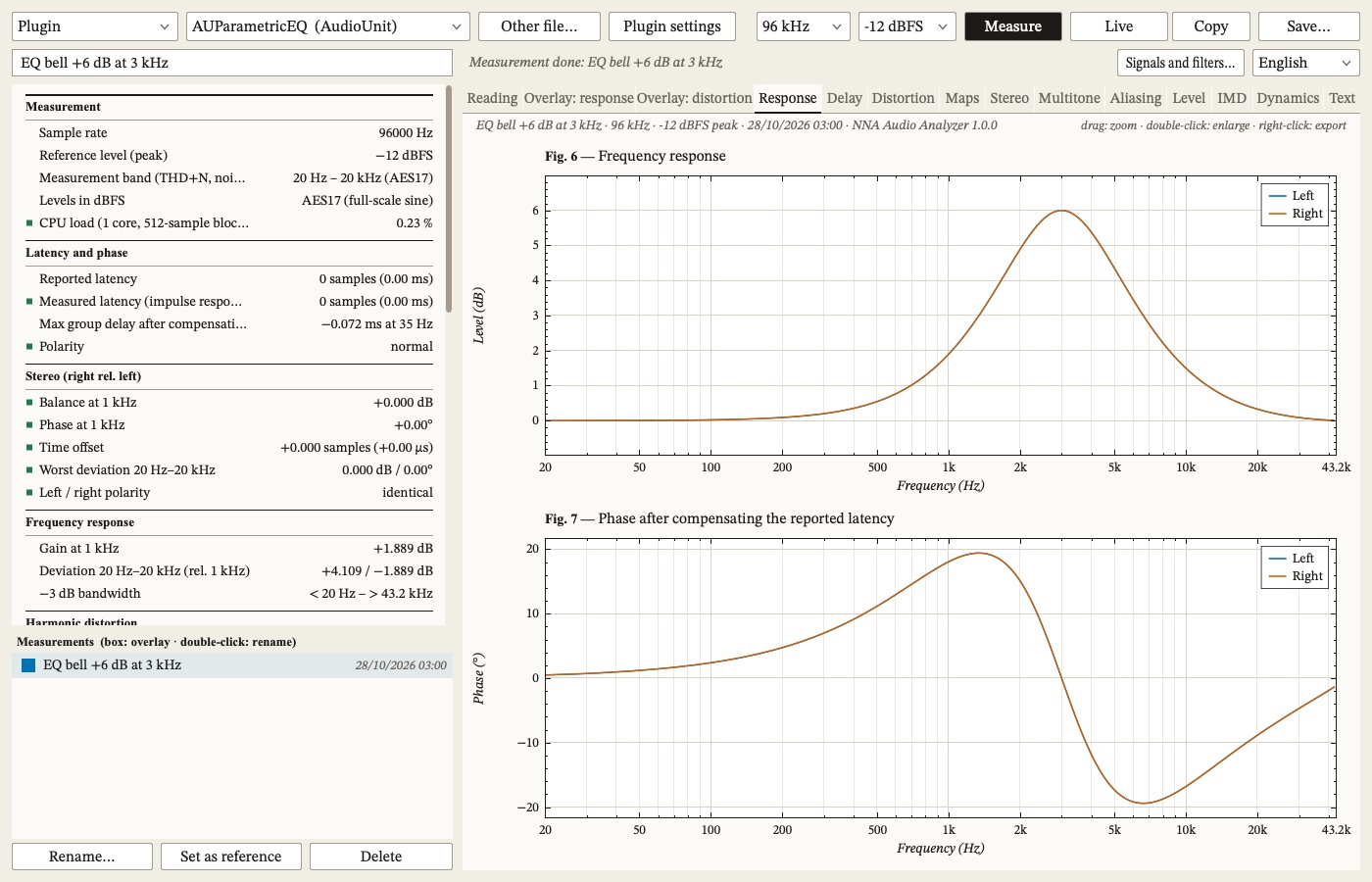
The panel on the left gives the numbers: THD and THD+N at 1 kHz, SMPTE, CCIF and two-tone IMD, multitone, noise, crosstalk, balance, latency. The Reading tab says in plain words what stands out: which harmonics dominate, whether audible aliasing is possible, whether the plugin compresses and with what attack and release, where THD+N crosses 1 %. The other tabs hold the figures: Response, Delay, Distortion, Maps, Stereo, Multitone, Aliasing, Level, IMD, Dynamics, and Text for the full listing.
Compare with a reference
Select a measurement in the library and click Set as reference: it is marked REF, and every following measurement is compared with it, in the A/B tab and at the top of the panel on the left. Measure a plugin at one setting, set it as reference, change the setting and measure again. Tick the boxes in the library to overlay several measurements in the Overlay tabs. Double-click or Rename… renames; Delete moves a measurement to the Trash.
3. Measure outboard through your interface
- In the first menu, choose Hardware (interface), then Interface and channels… to choose the interface and its channels.
- Cable outputs 1-2 of the interface to the input of the chain, and the output of the chain back to inputs 1-2.
- Choose the precision: Fast, Precise (×4) or Very precise (×16). The passes are averaged for the response, harmonics and IMD; noise and THD+N stay on one pass.
- Name the measurement and click Measure. A window asks you to confirm the interface, the outputs, the level and the duration; the signal then fades in and out.
To isolate one unit in a chain, measure the chain with the unit bypassed, click Set as reference, then insert the unit and measure again: the A/B tab shows what the unit does. The same way, measure left and right of a stereo unit to check they match, or a unit before and after a repair.
Loop: measure the interface itself
Cable the interface outputs straight to its inputs and click Loop…. NNA Audio Analyzer measures the interface alone. From then on, its response, phase, gain, left/right offset, polarity and latency are removed from every measurement made with that interface, those channels and that sample rate, and its distortion and noise are shown as a floor under each value. When a result reaches that floor, it is the interface you are reading, not the chain. Measure one loop per interface, channel set and sample rate.
dBu calibration
dBu calibration… gives the real gain of the chain, its noise and its clipping point in dBu. With With a voltmeter…, NNA Audio Analyzer plays 1 kHz at −20 dBFS and you type the voltmeter reading; if output 1 is also cabled to input 1, the input is calibrated at the same time.
One interface, one clock. On two devices without a common clock, the latency drifts and the phase goes wrong in the treble. NNA Audio Analyzer warns you before measuring, and during live and music modes the status line turns orange with the drift in ppm. Use one interface, or an aggregate device with drift correction.
4. Live mode
Click Live. NNA Audio Analyzer plays an endless signal and redraws the figures about six times a second. The menu below the toolbar chooses the signal: All (response, THD, IMD), Intermodulation (two tones, SMPTE, CCIF) and the others. With a plugin, open Plugin settings and turn its knobs: the instance whose interface is open is the one measured. Freeze the curve keeps the response in grey to compare. Stop ends it.
5. On music, and listening to the residual
- In the live menu, choose On music (a track of your choice), then Track… to open an audio file. It is set to the peak level you chose.
- NNA Audio Analyzer plays it on a loop through the plugin or the chain and shows the response and phase on the music, the coherence, the residual, the gain over time and the output against input level.
- In the listening menu, choose Listen to the residual: you hear the output minus what a linear filter predicts from the input, that is what the chain adds and an equaliser would not. The slider sets its gain, 0 to 40 dB, 20 by default; a soft limiter keeps it under about −10 dBFS, and nothing plays until the measurement has settled. Listen to the output and Listen to the track are there to compare.
Where it plays: with a plugin, on the Mac's default output; with an interface, on its outputs 3-4, to enable in Interface and channels…, while outputs 1-2 stay on the chain being measured. Use headphones, and start with the volume down.
6. Export figures and reports
- Double-click a figure to fill the tab with it; double-click again to put it back.
- Click a curve to place cursor A, click again for B: Δf in Hz, ratio and octaves, and Δ level.
- Right-click a figure: PNG (3× the screen), SVG, or the data in CSV. The same menu has Clear markers.
- Save… writes an A4 PDF report: cover, reading, table, then every numbered figure. A file name ending in .txt keeps the text only.
Download NNA Audio Analyzer
Free for macOS, with every feature.
Questions: the NNA Audio Analyzer FAQ, or support.